



Welcome to Your Device Setup!
Please allow ample time to complete the setup process. Depending on your device and network connection, setup may take an hour or more.
Steps for Device Setup
- Connect your laptop to the included charger.
- Power on the laptop.
- Follow the on-screen prompts:
- Country/Region: United States
- Keyboard Layout: Default
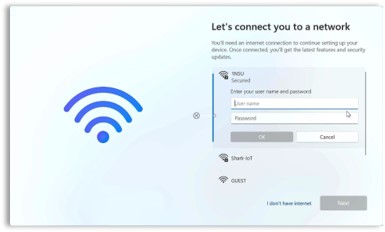
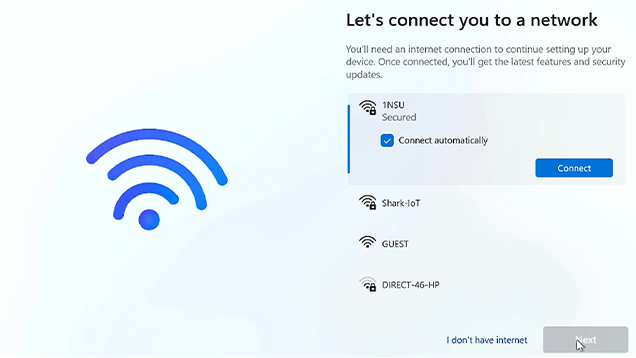
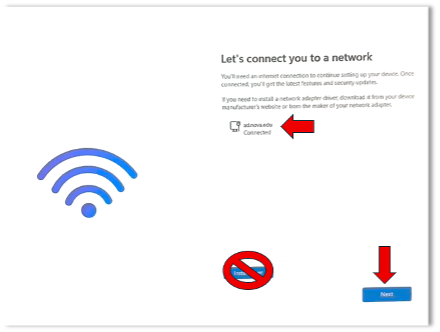
Step 2: Connect to Wi-Fi or Ethernet
- When prompted, select:
- Your home Wi-Fi network if working remotely, or
- 1NSU if you are on campus.
- Check Connect automatically.
- Click Connect.
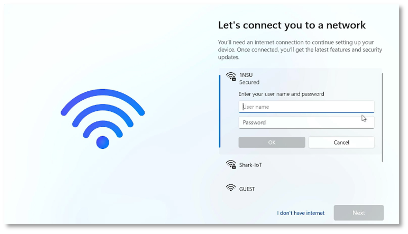
- Enter the network password if prompted.
Step 3: Sign In with Your NSU Account
- Enter your NSU email address.
- Enter your NSU password.
- Click Sign In.
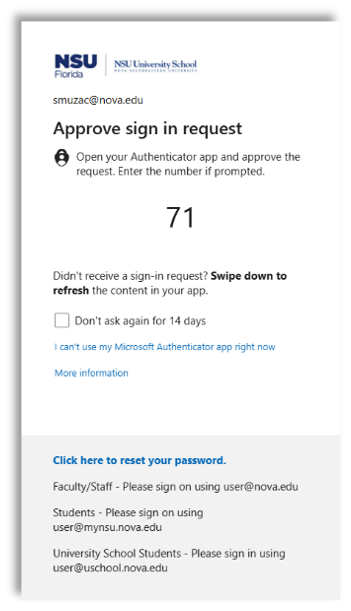
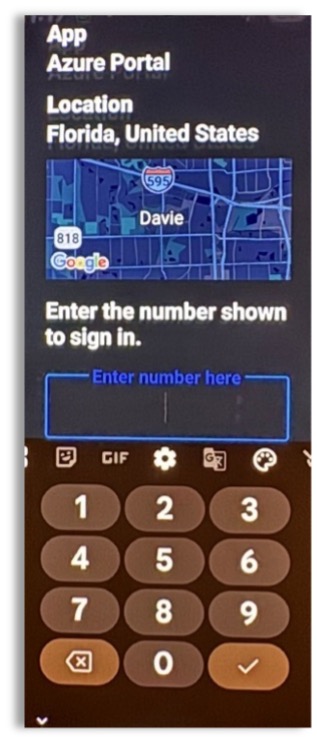
Step 4: Complete Microsoft Authenticator Verification
- A number will appear on your laptop screen.
- Open the Microsoft Authenticator app on your mobile device.
- Enter the matching number to approve the sign-in request.
For more information: https://www.nova.edu/it-help/sites/mfa-intune/setting-up-mfa.html
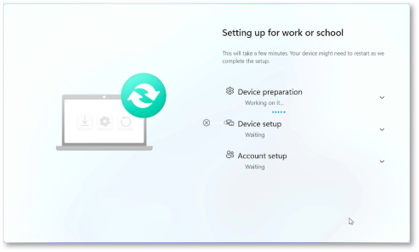
Step 5: Allow Device Configuration
- Your laptop will create your Windows profile and install updates.
- Keep the device powered on and connected to the internet.
- If you receive an error during setup, click Continue Anyway.
Note: This may occur if the internet connection is slow or unstable.
Step 6: Sign In to Windows
- Your device may restart several times.
- When the Windows login screen appears, sign in using your NSU credentials.
Need Help?
If you experience any issues during setup, please submit a ServiceNow ticket using the link below.
ServiceNow Support: https://nsu.service-now.com/
-
-
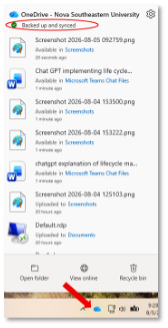
- OneDrive will automatically begin syncing your files.
- Depending on the amount of data, synchronization may take some time
-
To check the synchronization status on your OneDrive Data, click the small blue cloud on the corner of your computer. Circled in red, would display the sync status of your data.
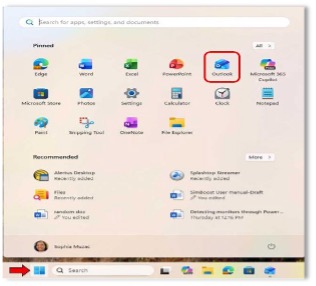
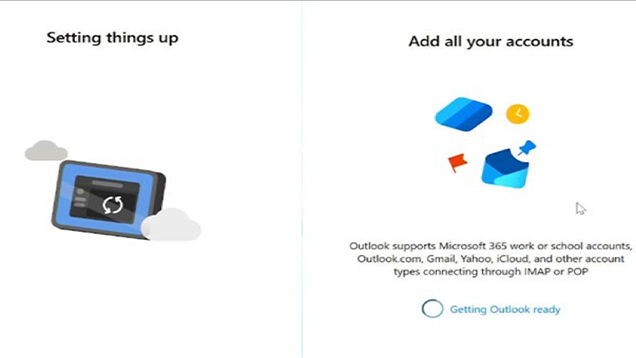
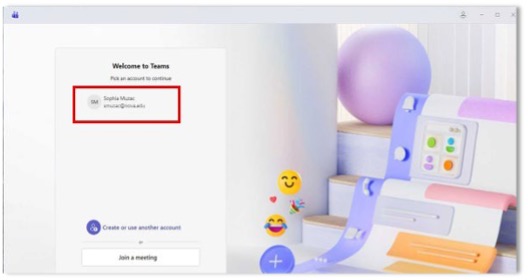
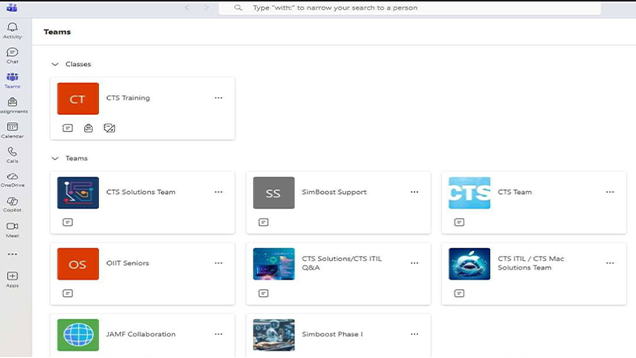
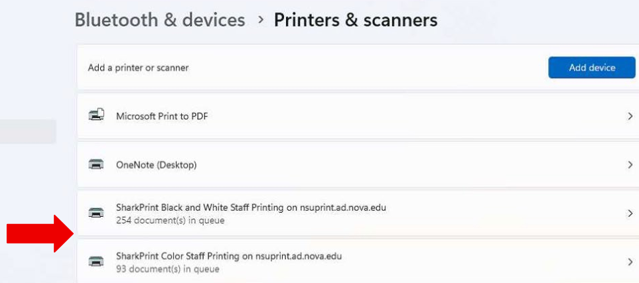
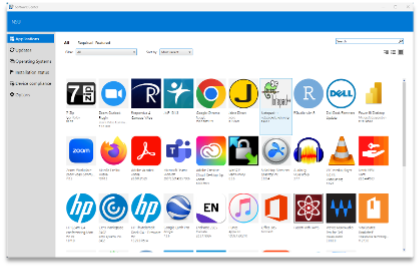
There are free applications in the NSU App store.
Launch the NSU App Store on your desktop. Choose your desired application.
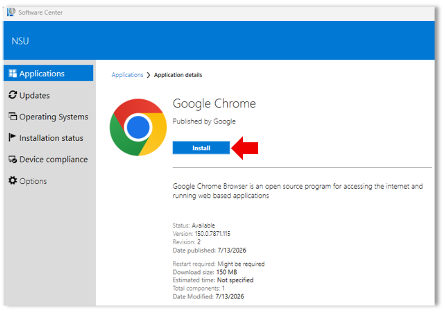
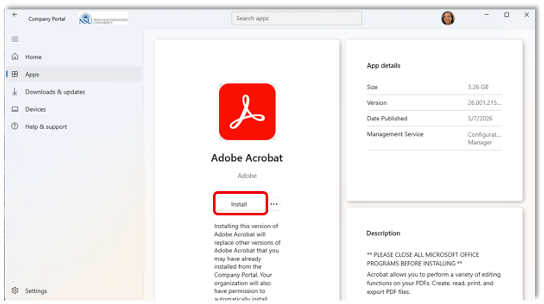
Click Install. Please allow time for the application to complete the installation.
Company Portal
There are free applications available in the Company Portal. Launch the Company Portal on your desktop.
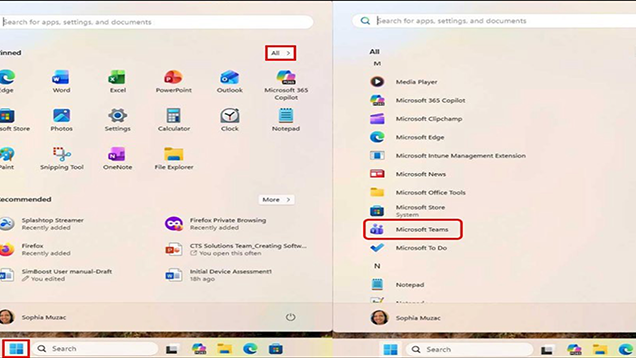
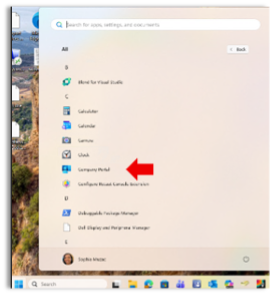
Or navigate through the Windows Start menu. Click StartAllScroll down and select Company Portal.
Allow time to load. Click Apps.
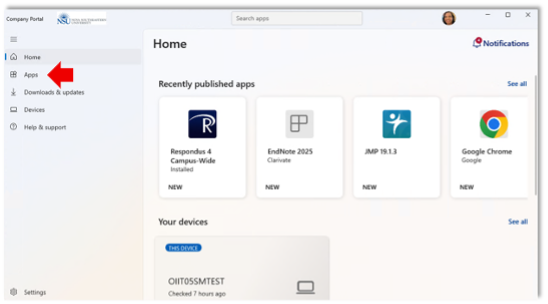
Select the application you want to install, click Install. Allow time for installation.
Still need assistance? Click ServiceNow to submit a ticket.
To contact SharkIT via phone: (954)-262-0070