


SFTP stands for Secure File Transfer Protocol. SFTP programs are mainly used to transfer files from your computer at home to your account on NSU's server. If you are publishing a web page to your NSU web space, for example, you may want to use an SFTP program. Using an SFTP program will allow you to view the files you have in your account, upload them, download them or delete them.
Be sure to request your Public Directory prior to using SFTP.
- To create this, you must have an active NSU email account. Go to www.nova.edu/createwebspace and fill out all the required information. You only need to do this once.
The NSU SFTP server accepts only secure connections. You may download a free SFTP program below.
- Open the WinSCP program located on your desktop.

- Enter host name as nsu.nova.edu
Enter your username without @nova.edu
Enter your Sharklink password and then click Login.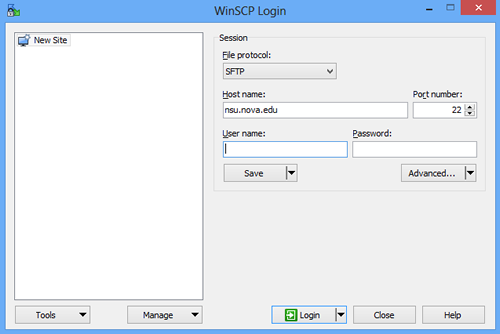
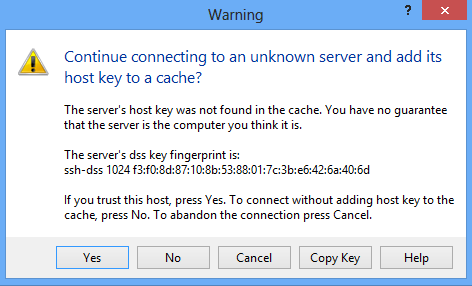
- Click Yes.
- Once you have connected to the server, double-click on the public_html folder on the right.
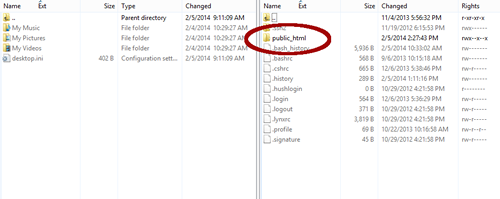
- Locate and select your folders and files on the left and drag them over to your public_html folder.

You may view your NSU webpage at www.nova.edu/~username
SharkLink
SharkLink is NSU's online portal. With a single username and password, students, alumni, faculty, and staff members can easily access many online university applications.
Quick Guide
Students (PDF)Microsoft Online Archive
Faculty and Staff (PDF)
Current Hours of Operation
Monday-Friday: 8:30 a.m. – 5 p.m.
Saturday: Closed
Sunday: Closed
Closed on University Holidays
Holiday Schedule
Help Number for Students:
(954) 262-4357
Toll Free:
800-541-6682 ext. 24357
Help Number for Staff:
(954) 262-0070