
This documentation is specific for Nova Southeastern University's implementation of Modern Campus.
General information about Modern Campus and training materials can be found on their support website.
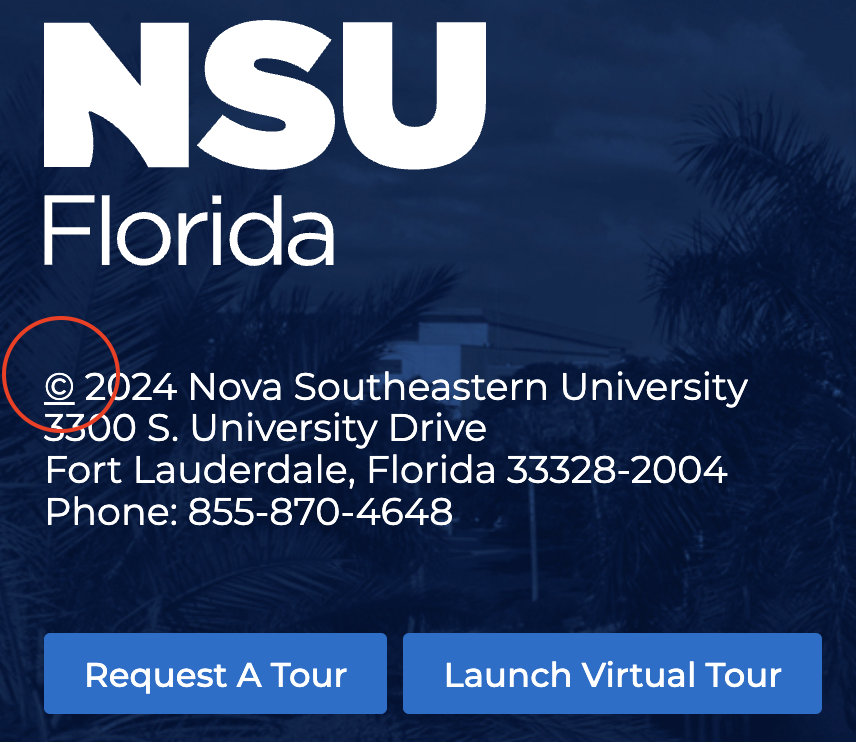
When viewing pages on the live site, you can access Modern Campus by clicking the copyright symbol in the footer.
After Logging In
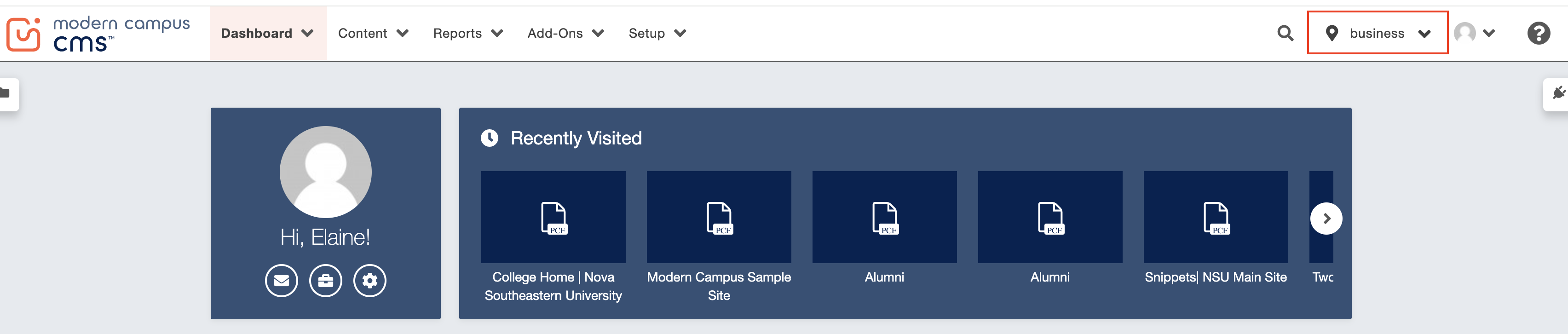
When you log in, you'll come to a dashboard screen with a list of NSU's subdomain sites. Pick the site you are working on (note that the main nova.edu site is found under "www"). To switch between sites, use the dropdown button in the top right of the menu.
General Tips
- Preview is not accurate. Publish pages to view.
Creating a Page
- Folders, sections, and filenames must be lowercase and use hyphens between words (Ie: program-concentration).
- Use subheadings on pages when appropriate and H2 on two-column pages (in parameters).
- Know which button style to use where:
- Solid blue buttons are used in most CTA instances
- Blue outline buttons are used for CTAs in accordions
- Blue link buttons are used for linking out to other resources that are not the page's key calls to action
- When pasting content from elsewhere, remove unnecessary styles and code by using a stripping tool such as html-cleaner.com or pasting into Notepad first.
Writing
- Headers, proper names, job titles, program names, and buttons should be in title case. Only acronyms should be written in all caps. See style guide for capitalization if in question.
- Spell out "Nova Southeastern University" on first reference and use "NSU" thereafter.
- Spell out college/division on first reference, including donor name where applicable.
Properties & Parameters
https://support.moderncampus.com/learn-omni-cms/pages-files/edit/properties.html
- The page must be checked out to view the parameters tab in the page properties.
Page title is what is displayed on the page. Filename is displayed in the URL.
Multiedit for Program Pages
https://support.moderncampus.com/learn-omni-cms/pages-files/edit/multiedit.html
Program pages have an additional properties option with can be accessed by the button above the content area. Information in multiedit will populate the program listing page. It includes:
- Title
- Degrees dropdown
- Locations check boxes
- Colleges dropdown
- Summary
- Concentrations
Page options:
- Page Heading (H1)
- Sub Header Text (H2)
- Breadcrumb
Hero Content:
- Banner Content
- full width >> hero image full width of page with page title, optional sub title and CTA button
- 2-column >> heading with image, standard for most pages
- Text >> Blue banner across full width of page with page title
- None
- Hero Image
- Hero Image Alt Text
- Banner CTA
- Banner CTA Link
Carousel in Banner
Homepages have the option for a carousel in banner. These are limited to no more than three images. To have a static banner, only insert one photo.
Side content
Not all components work in the side content block, only
- CTA buttons (snippet)
- Block quote (no photo)
- General block
CTAs should be ordered:
- Request Info
- Apply Now
There are generic assets for CTAs for admissions, undergraduate programs, and graduate programs. Confirm that these links match what is on the current website as they are not consistent across all pages/programs.
Colors
Most pages will have shades of blue and gray only (no hibiscus orange or palm green).
https://www.nova.edu/brand/colors.html
Generally, alternate background colors when stacking components.
- Facts, Figures and Earnings should be in NSU blue.
- Quick Facts have light gray background.
- Success stories (video) have NSU blue background.
- For program pages, use a hierarchy of dark to light.
Folders vs. Sections
https://support.moderncampus.com/get-started/content-editor/new-pages.html
For new directories, create a new “section” versus “folder” so it automatically adds proper files to populate navigation. Folders should be used for documents and images. Each section should have an index file.
For the people directory, use New Faculty Section to create the faculty list index page instead of a standard index page.
- If a folder has no index page, edit the folder settings and “Skip” the folder from being included in the breadcrumbs.