Links
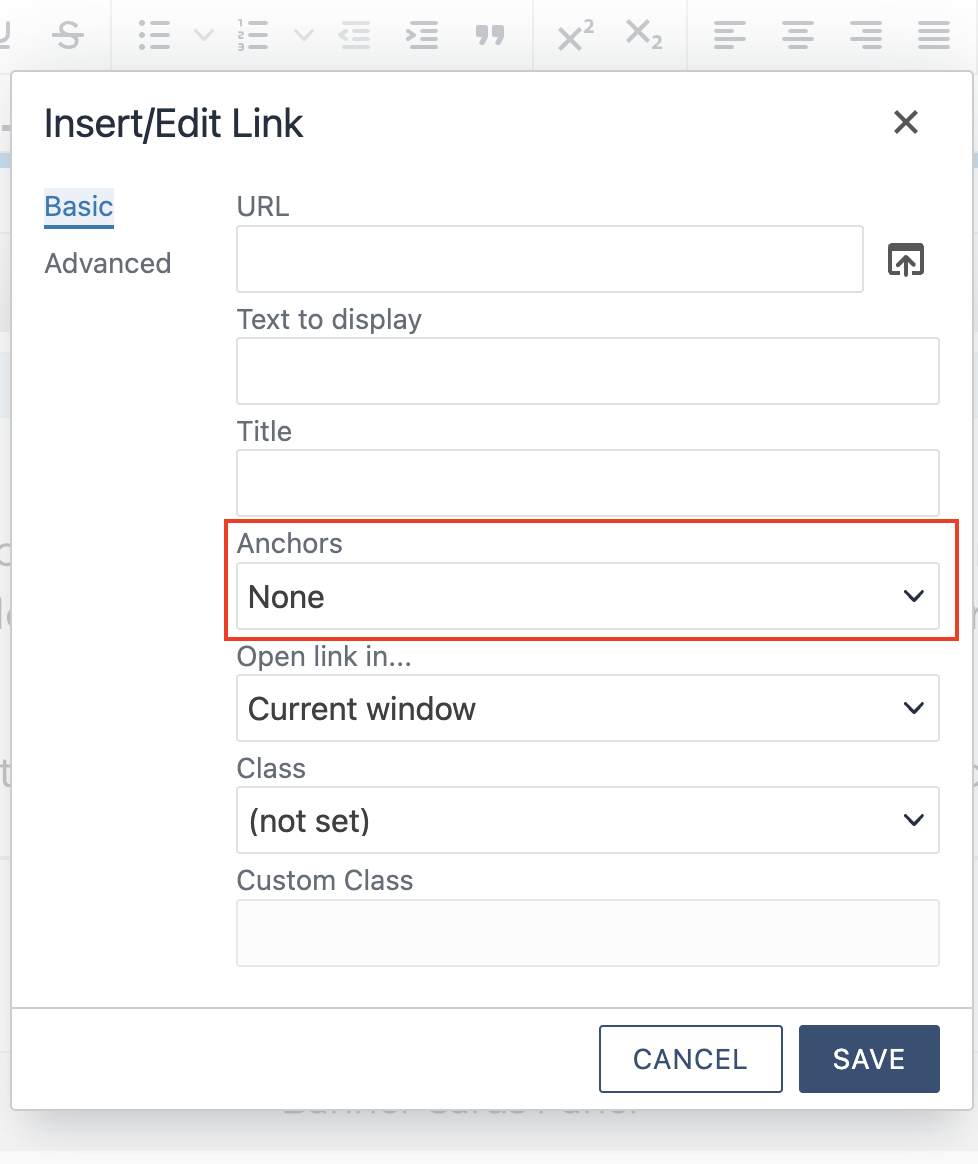
Clicking on the link icon in the wysiwyg toolbar open a dialog box.
Make an internal link by clicking on the arrow icon and navigating to the page you want to link to.
Choose the class in the insert/edit link box to style as a button.
Links external to Nova.edu should open new window.
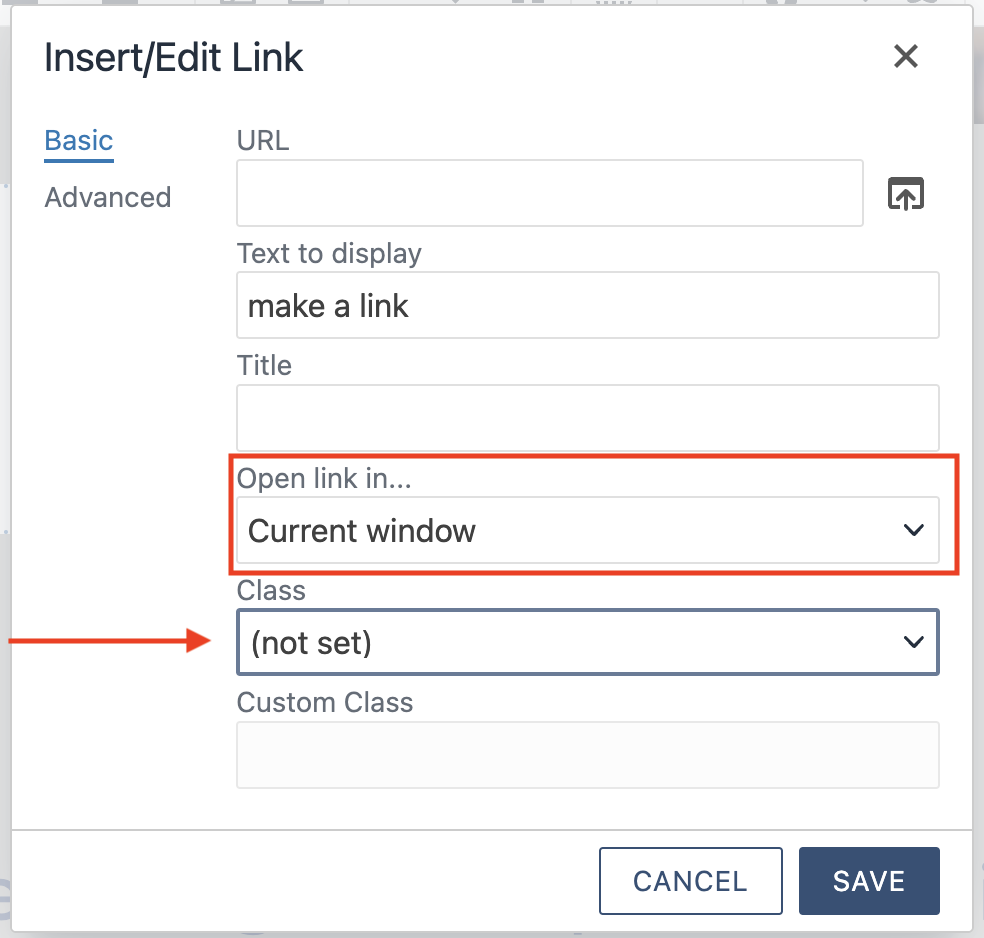
For external links, include https:// or http:// to link properly.
The text to display shows on the web page. The title is important for ADA purposes.
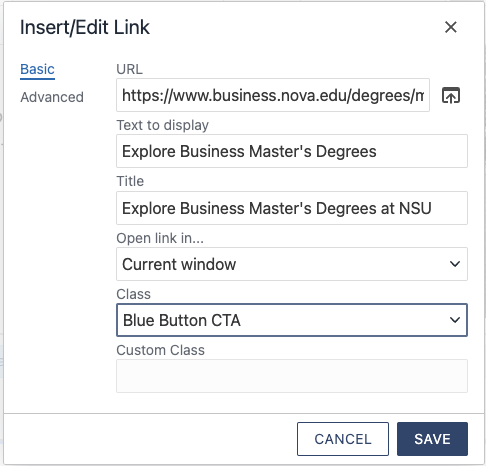
Modify a link by putting your cursor on the link you want to edit and click on the link icon.
To remove a link, click on the broken link icon.
Button colors
NSU blue is the predominant button color. Hibiscus orange and palm green button colors shouldn’t be used.
- The primary button is CTA button.
- The outline button can be used as a secondary button.
- Anchor buttons have a down arrow.
- Right arrow can be used when linking to another page without a call to action.
Anchors
https://support.moderncampus.com/learn-omni-cms/tutorials/content-editor/index.html
Anchors are used to jump to a particular part of a page. Make an anchor by putting
your cursor on the page where and add the anchor by using the WYSIWYG. The icon will
appear on the page. 
The anchor field will only appear in the link dialog box if there are anchors in that content section. If you are making an anchor to another section on the same page, you must use a hard link or use #anchorname in the link field (preferred).