The header, footer, and prefooter files are located in /_resources/_includes/ for each site. Files are inherited for folders within the site.
When the pcf file is checked out, you can see the different editable regions.
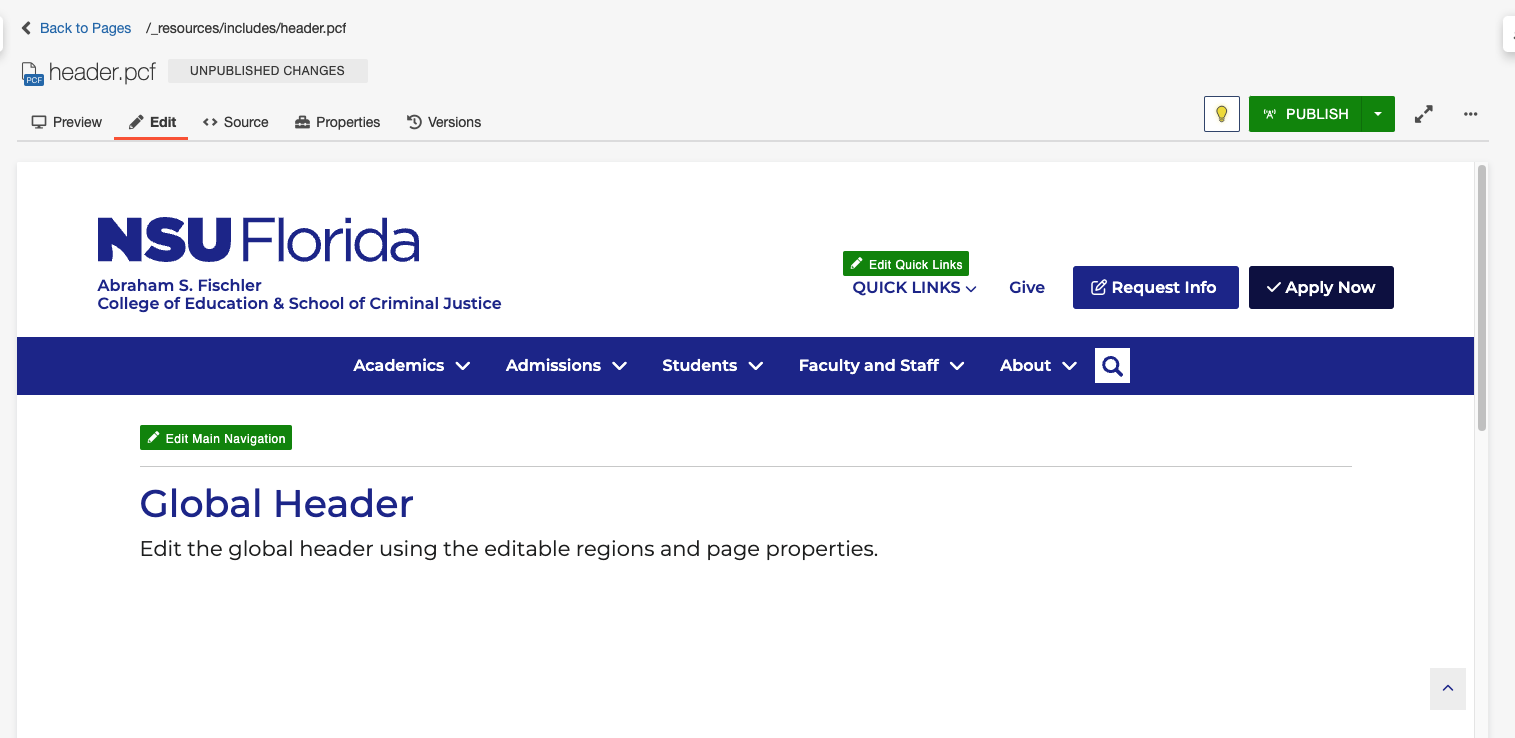
The header, footer, prefooter files are located in /_resources/includes off the root for each domain.
Header
The header is customized for each subdomain. Edit the header.pcf file to make changes.
Properties>Parameters
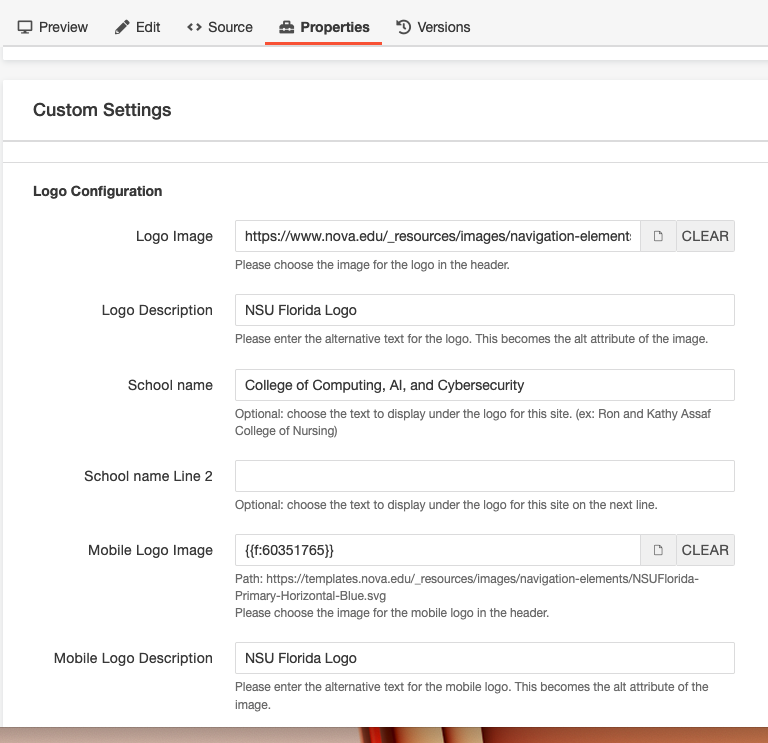 There are several sections in the parameters that need to be completed.
-
Logo Configuration
-
The school/division can be listed on two lines, generally the donor should be on the first line
-
The logo image is the NSU logo and is the same for desktop and mobile: https://templates.nova.edu/_resources/images/navigation-elements/NSUFlorida-Primary-Horizontal-Blue.svg
-
Logo link should go to the college/division home page and be linked internally
-
-
Link Back Configuration
-
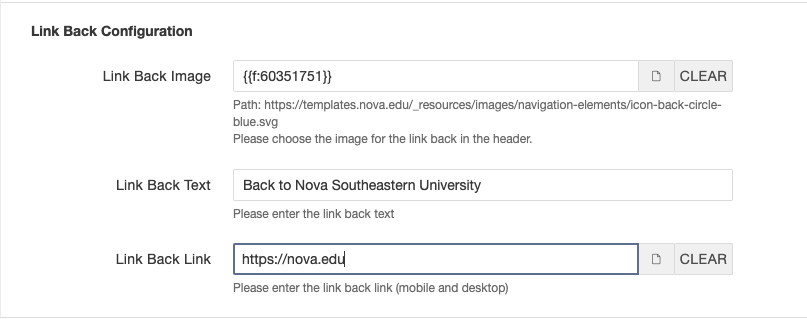
Should link back to NSU home with text "Back to Nova Southeastern University"
-
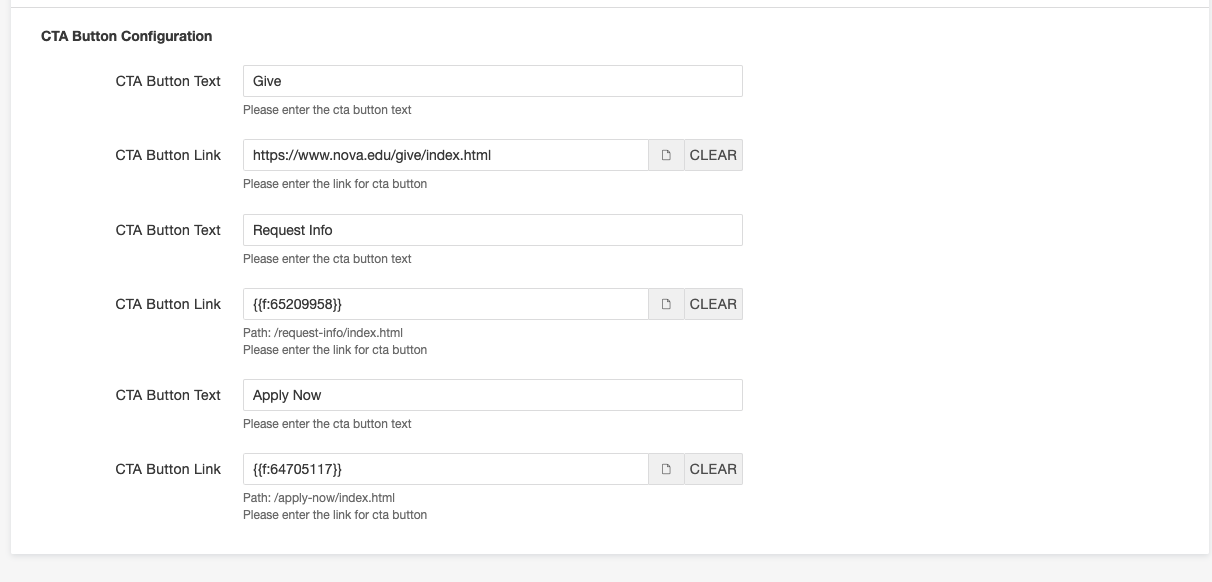
- CTA Button Configuration
-
-
Give should go to the university link: https://www.nova.edu/give/index.html
-
Request Info and Apply Now should be linked internally to the college/divisions pages, when applicable
-
Save and publish to production.
Quick Links
Quick Links are edited in the templates domain - a file for desktop and file for mobile.
templates/_resources/includes/quick-links.inc
templates/_resources/includes/quick-links-mobile.inc
Publish both files to production.
Quick Links are accessed by clicking the green "Edit Quick Links" button. Links can either be edited using the link button in the WYSIWYG or in the code, keeping the bullets. Bullets will not appear on publish. Dependency tags should be used when available.
Horizontal Navigation
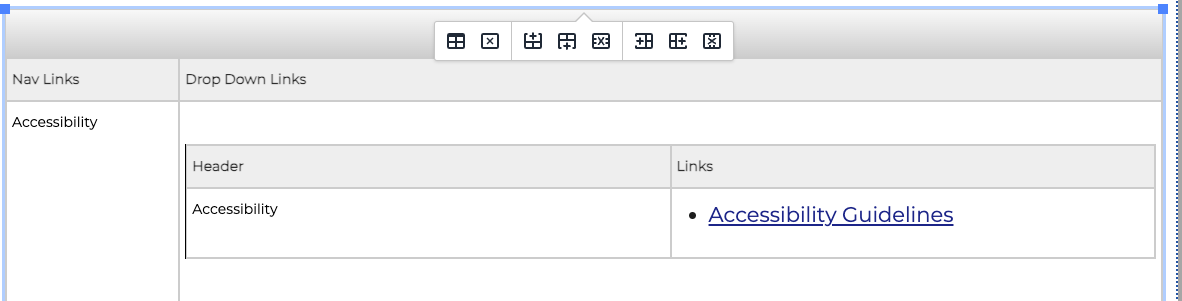
The horizontal blue bar navigation is edited by clicking on the green "Edit Main Navigation" button. An editing box will appear with a table. Items in the left column are what appear in the blue bar. The nested table includes the dropdown links for up to three columns. If only one row is used, the header will be suppressed. On desktop, if there are more than six links in the links column, they will be evenly split among three columns.
Add links for the dropdown by maintaining the bullets and using the link function in the WYSIWYG editor. To add additional columns, use the table tools to add another row.
Note: If there are changes to pages linked on the navigation, the header.pcf file will need to be republished.
Footer
Open the footer.pcf file and edit by clicking on the green editing boxes.
The copyright date automatically updates to the current year.
Visit campus and social media links are editable in the parameters tab.
Note: To replace the footer image you would need to replace the file in the templates site: /_resources/images/navigation-elements/footer-background-school.jpg.
Note: If the footer bullets are indented (hollow bullet), the navigation items won't show.
Prefooter
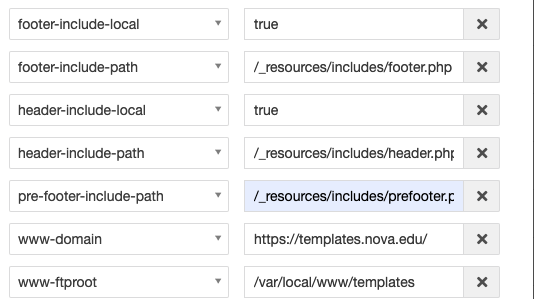
The prefooter files are located in the /_resources/includes folder. The prefooter can be customized by domain or by site. For the prefooter to show, edit the directory variables in parameters and add "pre-footer-include-path" and the prefooter file path.
Page Title
The page title is what shows in the browser (see below) and can be automatically appended to include the College name. Format is as follows:
[page title] | [school name] | Nova Southeastern University

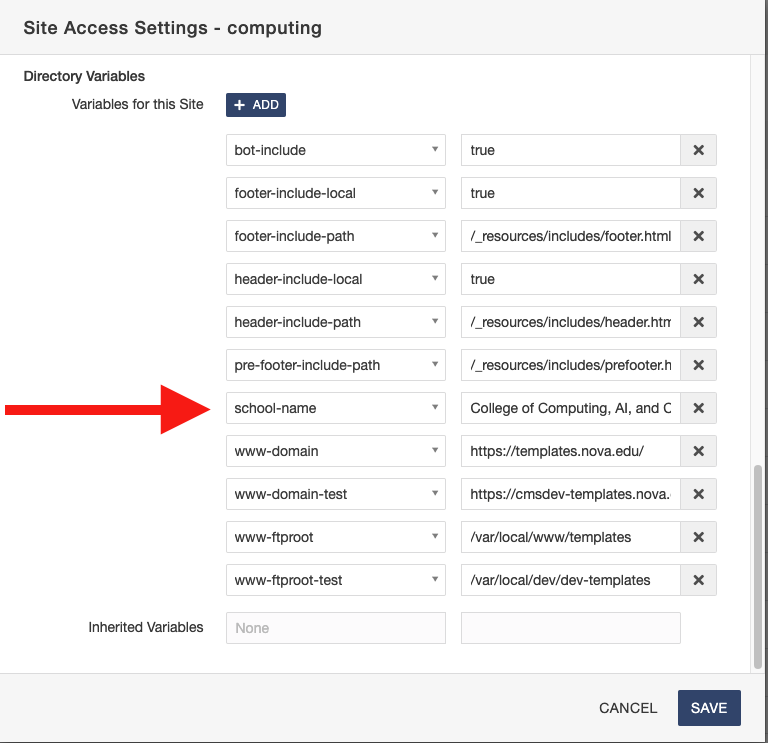
To change the college, in the root folder, click on the key icon (site access settings). The dialog box will pop up. Be sure to check the box "Apply Selected Settings to All Existing Files and Folders in the Site." Scroll to the Directory Variables. Add "school-name" as a variable and then type in the name of the College. Click save.
The page title is now automatically appended for all the pages in the site with the exception of the index page.