Nova Southeastern University's Division of Business Services supports the university’s mission by providing a variety of services to NSU students, faculty and staff members, alumni, and guests.
Service Departments
Hours and Location
Monday - Friday: 8:30 a.m. to 5:00 p.m. EST.
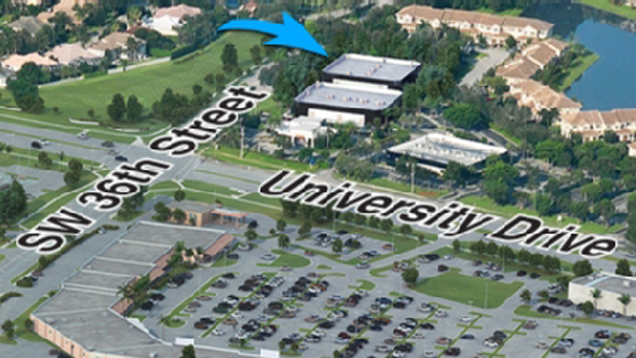
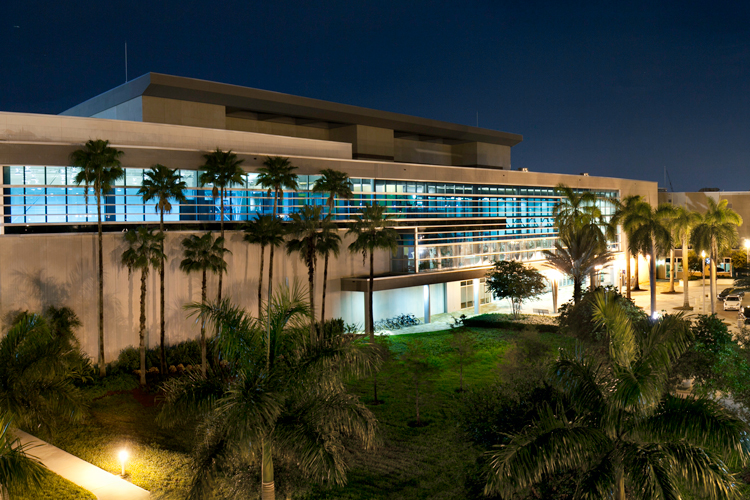
7901 SW 36th Street
Suite 206
Davie, FL 33328
Mailing Address
Division of Business Services
3300 S. University Drive
Fort Lauderdale, FL 33328-2004
(954) 262-8829
From Florida Turnpike or I-95 north or south
- Take the I-595 West exit. Go west on I-595 to the University Drive exit.
- Turn LEFT onto University Drive.
- Turn RIGHT onto SW 36th Street.
- Turn RIGHT into the east parking lot of building number 7901.
From the West
- Take I-595 East to University Drive exit.
- Turn RIGHT onto University Drive.
- Turn RIGHT onto SW 36th Street.
- Turn RIGHT into the east parking lot of building number 7901.